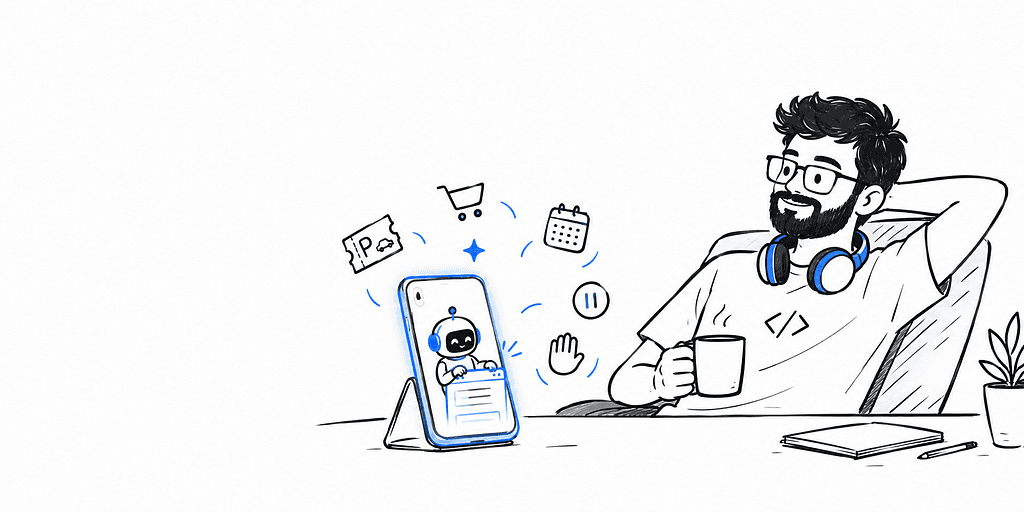
“Wait. Chrome is going to run my errands now?”

I read Google’s announcement twice before one line finally landed.
It wasn’t the “summarize this article” part. Every browser has that now. It was auto browse: Chrome on Android can scroll, tap and type into websites for you while you do something else on your phone.
Google’s example? You’re heading to a comedy show and forgot parking. You tell Chrome. It reads the event details from your ticket confirmation and books a spot through SpotHero.
No tab juggling. No copy-pasting a date.
That’s not a chatbot. That’s a tiny intern living in your browser.
Then I did what I always do when something sounds too good. I opened the help pages and read the requirements.
That’s where it got interesting. And a little annoying.
Here’s everything I found, minor details included.
What Gemini in Chrome on Android Can Do Right Now 🤖
“Okay, this is more than a fancy summarize button.”
Google announced it on May 12, 2026, at The Android Show: I/O Edition. It runs on Gemini 3.1. The rollout began in late June on select devices, and on August 18 Google said every Android user in the US could get it.
The feature list, in plain terms:
- Page Q&A: ask about the page you’re on, summarize a long article, get a nasty paragraph explained. Follow-ups stay in the same chat.
- Google app hooks: drop an event into Calendar, send recipe ingredients to Keep, dig something out of Gmail.
- Personal Intelligence: opt-in. Answers get shaped around your interests, hobbies, even your family and pets.
- Nano Banana: create or edit images without leaving the browser.
- Auto browse: the agent. Paid tier only.
The first four make Chrome a smarter assistant. The last one makes it a different product.
When the chat opens you may also see suggestion chips floating over it: things like booking a movie, summarizing the page, or talking through a topic.
How to Open Gemini in Chrome on Android (Toolbar Icon, Menu and Canary) 📲
“Where’s the button? I’ve been staring at this toolbar for a minute.”
Finding it takes two seconds, if your account has it.
Tap the Gemini icon in Chrome’s top toolbar, or open the three-dot menu and pick Ask Gemini. The first launch asks you to opt in.
A chat then opens over the page. Google’s blog calls it a bottom sheet. The help page describes a floating chat box. Same idea: it sits on top, and you can keep browsing while it answers.
Small details worth knowing:
- Minimize: double-tap the tab in the background.
- Bring it back: drag the bar above the chat, or tap Ask Gemini again.
- Resize: drag the top bar to see more or less of the conversation.
- New chat: button at the top.
- Page sharing: your current page is shared by default. A Stop sharing page button sits in the text box.
- Links: tapping one inside the chat opens a new tab, and you have to start Gemini again there.
- Where it won’t show up: Incognito, and Google Search results pages.
One more thing from October 4. PiunikaWeb spotted the Gemini toolbar button appearing in Chrome Canary on a handful of devices, no flags needed. Looks like an A/B test. Long-press the icon and you land on Toolbar Shortcuts, where you can swap it for a different button. It isn’t on stable yet.
Gemini in Chrome Android Requirements: The Checklist That Decides Everything 📋
“Four gigs of RAM, Android 12, English. Fine. Now the rest of the list.”
Before anything else, your phone and account have to clear this:
- Age: 18 or over
- Region: United States only on Android
- Hardware: an Android phone with at least 4 GB RAM, running Android 12 or higher
- Software: latest Chrome, signed in to Chrome
- Language: device set to English (Google’s launch notes said English-US specifically; the help page just says English)
- Mode: not Incognito
- Work or school accounts: only if your admin switches it on
Great hardware doesn’t save you if the region or language doesn’t match. A localized device language can knock out a perfectly capable phone.
Gemini in Chrome Android in India: Why Your Phone Probably Doesn’t Have It Yet 🇮🇳
“Wait, desktop and iPhone get it in India, but Android doesn’t?”
Here’s the part that stung.
Google brought Gemini in Chrome to India, New Zealand and Canada in March 2026. Desktop and iOS came first, along with 50+ more languages, Hindi and Gujarati included. On Android in India, you got Gemini the old way: hold the power button and use the overlay.
The in-Chrome version is different. Google’s own availability page for Android says United States only and English only. Business Today reached the same conclusion for Indian readers right after the August launch.
So here’s the irony. Gujarati works in Chrome on desktop. On Android, the device language has to be English.
Is a change coming? Maybe. The October 4 Canary sighting suggests Google is testing the toolbar button on more devices, and PiunikaWeb read it as a hint at wider regions. Nobody has announced a date.
And no, I’m not going to tell you to spoof your region. This is an agent that can sign into your accounts. Wait for the real rollout.
How Chrome Auto Browse on Android Runs a Task, Step by Step ✨
“Wait, I can lock the phone and it keeps going?”
Here’s the flow from Google’s help page:
- Tap Ask Gemini and describe the job.
- Gemini shows you a plan first. Check that it understood your prompt, the page and your personal info.
- Tap Start Task.
- An auto browse icon appears on the tab it’s working in.
Pause on step 2. Gemini picks which sites to visit, and it may hand your personal info to them. The plan screen is your only checkpoint before that happens. Read it.
While it works, Google’s preview coverage described a circular indicator around the Gemini spark and a blue glow around the page, plus a docked progress bar if you minimize the sheet. There’s also a View progress option, and reportedly a status chip pinned at the top that you can’t swipe away.
Now the nice part: you don’t have to stay in Chrome. Use your phone normally. If the task finishes while you’re elsewhere, you get a notification (so keep Chrome’s notifications on). If it needs you, a Check your task banner shows up at the top of the browser.
Controls you get: Pause, Resume, Stop, Take over task and Give back task. Closing the task tab also stops it.
When it hands the wheel back to you:
- Take-over steps: finalizing financial transactions, accepting terms of service, creating an account
- Confirmations: before starting a task, sending messages, changing your data, submitting forms, scheduling events, or visiting sites with highly sensitive financial or health data
- Sign-ins: it asks permission before using Google Password Manager. Google says your passwords aren’t shared with Gemini. You can review the allowed sites in Settings, under Gemini in Chrome
- Master switch: Let Gemini browse for you, in the same settings screen
Jobs Google lists as fair game: compare products and add them to a cart, book travel stays, restaurant reservations, appointments, fetching receipts, drafting messages, organizing your calendar. Updating a recurring pet-food order is the example Google keeps using.
Auto Browse Requirements and Daily Limits: AI Pro vs AI Ultra 🔢
“Twenty tasks a day sounds like plenty. Until it isn’t.”
Auto browse has its own gate on top of everything above.
You need:
- Google AI Pro or AI Ultra on a personal account
- 18 or over, in the US, device language English
- Gemini in Chrome opted in, plus permission granted for auto browse
- Latest Chrome, signed in, no Incognito
- Safe Browsing on Standard or Enhanced. Easy to miss.
- Work or school accounts: only if the admin enables it
And the limits:
- AI Pro: up to 20 multi-step task requests per day
- AI Ultra: up to 200 per day
- A cap on how many tasks can run at once (the help page doesn’t publish the number)
Hit the cap and Gemini tells you. It also doesn’t work in Live chats, or in Gemini in Chrome on iPhone and iPad.
Pricing? Skipping it on purpose. Auto browse is US-only, so an INR number would be fiction.
Gemini in Chrome Privacy: Prompt Injection, Data Sharing and What I’d Lock Down First 🔒
“It sees every site I’m logged into. Cool. Cool cool cool.”
Google is unusually blunt about the risks, which I respect.
Its own help page spells them out. Auto browse has access to the same sites you do, including the ones you’re signed into. It can share your info with sites it visits. And the whole thing is labeled experimental.
The big one is prompt injection: a web page, email or document hides instructions meant for the agent, not for you. Google’s own examples include pulling private info out of your emails and posting it publicly, or quietly forwarding your Gmail to an outside service.
What Google says it built against that:
- models trained to spot known injection patterns
- take-over handoffs for sensitive steps
- confirmation prompts
- limits on which sites and actions a task can touch
- recognition of prohibited tasks
Then comes the line that matters. None of this guarantees protection. Watching the task is on you. And you’re responsible for what Gemini does during it, mistakes and surprise purchases included.
Google’s own list of ways it can go wrong: clicking the wrong link, ordering without your permission, wrong quantity in the cart, saying it’s finished when it isn’t.
The paper trail is decent. Chats land in Gemini Apps Activity, and the sites it visited show up in Chrome history with a Gemini action icon.
My rules:
- No banking, medical or work accounts open while an agent runs
- Read the plan screen every single time
- Keep Let Gemini browse for you off until I have a task worth giving it
One more flag. Gadget Hacks reported that app-level permissions and an Android Privacy Dashboard update for AI assistants were still due later in 2026 when this launched. Check whether they’ve shipped before you trust your setup.
Nano Banana in Chrome on Android: Editing Images Without Leaving the Page 🍌
“An infographic out of a random article? Fine. Show me.”
Smaller feature, still fun.
Google’s two examples: ask Gemini to turn a long study page into an infographic, or take an apartment-listing photo and ask for modern living room furniture in the empty space.
Useful for visual learners and house hunters. Less useful on protected images. On desktop, Google says the create-image option may not appear for protected or unsupported images, and image editing needs you to be 18+. I haven’t found Android-specific image rules in Google’s docs, so treat that as a likely limit, not a confirmed one.
Google’s terms still apply too. Don’t trample someone else’s copyright or privacy with generated images.
Flutter Web and Gemini Auto Browse: Can the Agent Read Your App? 🧪
“If an agent is tapping my UI, what exactly is it reading?”
This is where my dev brain kicked in.
Google hasn’t documented how auto browse perceives a page. DOM? Screenshots? Accessibility tree? Unknown. So everything below is a hypothesis to test, not a claim.
Flutter web paints your UI onto a canvas. The semantics tree, the thing screen readers lean on, only exists once accessibility is switched on. If an agent relies on page structure, a canvas-only app might look like an empty rectangle to it.
The experiment I’d run:
import 'package:flutter/material.dart';
import 'package:flutter/semantics.dart';
void main() {
WidgetsFlutterBinding.ensureInitialized();
// Force the semantics tree on instead of waiting for a screen reader.
SemanticsBinding.instance.ensureSemantics();
runApp(const MyApp());
}
Build the same form twice, once with this and once without. Hand both to an agent. Compare.
I can’t run it without a US-region AI Pro account. If you can, I’d love to see your results.
Beyond Flutter, the bigger point: agents are a new kind of user on your web forms. Clear labels. Predictable flows. No dark-pattern confirm screens.
Is Gemini in Chrome on Android Worth It? Where It Wins and Where It Doesn’t ⚖️
“Great demo. Now show me the boring Tuesday use.”
Short version: use it, but supervise it.
Where it wins
- Google ties the paid tier to auto browse only. The Q&A and summary layer isn’t gated by a subscription in the announcement.
- It sits on top of the page you’re reading. No copy-paste, no app switching.
- Calendar, Keep and Gmail hooks turn “interesting page” into “thing on my list” in one step.
Where it doesn’t (yet)
- US (I just got to know that its in india too) and English only on Android
- One page as context on mobile, as far as Google’s docs show. Desktop can share up to 10 tabs
- Auto browse is experimental, daily-capped and Pro/Ultra only
- Mistakes are yours to own
Impressive. Not finished.
My plan: use the Q&A layer as soon as I can get it. Treat auto browse as a supervised intern for low-stakes chores like parking, reorders and receipts. Nothing that touches money or accounts I can’t afford to lose.
So where’s your line? Would you let an agent sign into your accounts for you?
Tags: Gemini, Google Chrome, Android, AI Agents, Flutter